Managing Activities
The core of the PictoStick’s configuration is managing the user’s weekly activity schedule. This is done through a simple web interface that you can access from a computer, tablet, or smartphone.
Note
Before you begin, ensure the PictoStick has been configured to connect to your local WiFi network as described in the Initial Setup guide.
Entering Web Administration Mode
On the PictoStick, press and hold Button B for 5 seconds to open the configuration menu.
Use the side buttons to navigate to “Picto Sequence Update” and press Button C to select it.
The device will connect to WiFi and start a web server. The screen will display the IP address you need to connect to (e.g.,
http://192.168.1.123).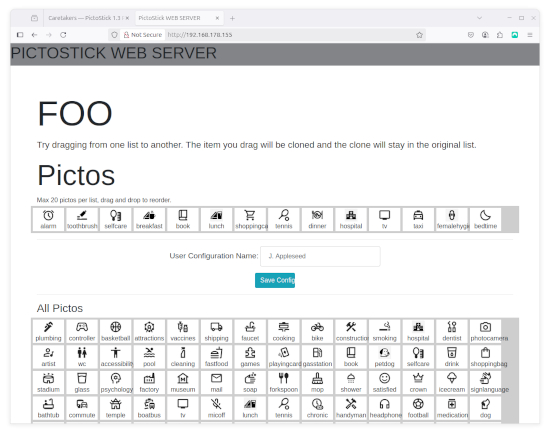
On a device connected to the same WiFi network, open a web browser and type in the IP address shown on the PictoStick screen.
The Web Interface
The web interface allows you to set a unique schedule for every day of the week.
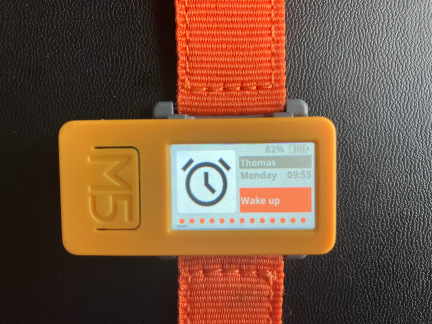
User Name: At the top, you can set the name of the user, which will be displayed on the PictoStick’s main screen.
Day Tabs: Click on the tabs for Monday, Tuesday, Wednesday, etc., to switch between the schedules for each day.
Activity Schedule (Top Section): This area shows the current sequence of activities for the selected day. * To reorder activities: Click and drag an activity to a new position in the list. * To remove an activity: Click the red ‘delete’ icon next to an activity.
Available Pictos (Bottom Section): This is your library of all available pictos on the device. * To add an activity to the schedule: Find the picto you want in the library and click the green ‘add’ icon. It will be added to the end of the schedule for the currently selected day.
Saving Changes: After you have arranged the schedules for all the days, click the blue “Save Configuration” button at the bottom.
The PictoStick will save the new schedules and automatically reboot into its normal mode, ready for the user.
Note
Each day can have a maximum of 20 activities. The available pictos are stored on the device itself. For information on adding new custom pictos, see the Developer Setup guide.